

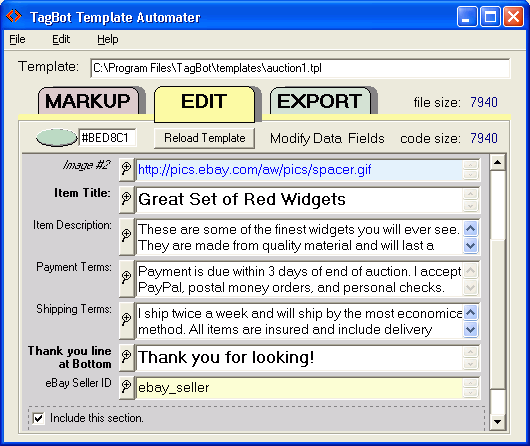
TagBot is a template tagging tool that lets you create editable HTML listing templates. You embed special [TagBot] tags into your markup file — these define editing slots, global variables, and section wrappers that users fill in to generate the final HTML. This guide covers the complete syntax for both the desktop and web versions.
01 What is TagBot?
TagBot is a desktop tool built specifically for eBay sellers and template designers. It reads your listing HTML, applies your find/replace rules, and outputs the modified template — all without requiring any coding knowledge.
TagBot works by loading your template file, scanning it with your defined search patterns, and replacing matched content. It supports plain text, wildcards, and full regular expressions — giving you three levels of power depending on your needs.
02 The TagBot Toolbar
The toolbar sits at the top of the TagBot window and gives you quick access to all core functions:
Open
Load a template HTML file from your local drive into the editor.
Save
Save the modified template back to disk after applying changes.
Find
Search for a pattern in the template without replacing anything.
Replace
Find a pattern and replace it with new content in one pass.
Replace All
Apply all defined rules in sequence to the entire template at once.
Undo
Revert the last change — useful when a replacement produces unexpected results.
03 TagBot Syntax & Tag Meaning
TagBot uses a custom tag syntax inside your search patterns. These tags act as wildcards or special matchers:
| Tag | Meaning |
|---|---|
<*> | Match any single HTML tag |
<**> | Match any sequence of HTML tags |
[*] | Match any single word or token |
[**] | Match any sequence of words or tokens |
{*} | Match any single character |
{**} | Match any sequence of characters |
^ | Start of line anchor |
$ | End of line anchor |
\n | Newline character |
\t | Tab character |
| | OR — match either left or right pattern |
#tagging | Named capture group for reuse in replacement |
04 Global Flags
Flags are applied to the entire search engine and control how TagBot interprets your patterns. They are set in the Flags panel above the search field:
iMatches regardless of uppercase or lowercase letters.
gReplace all occurrences in the template, not just the first match.
mMakes ^ and $ match the start/end of each line, not just the whole string.
sMakes {**} match newline characters too — essential for multi-line HTML blocks.
xIgnores whitespace in the pattern, allowing you to write more readable multi-line patterns.
rEnables full regular expression syntax instead of TagBot's simplified wildcard syntax.
Example with flags:
<div class="old-banner">{**}</div><div class="new-banner">Updated Banner Content</div>With the s flag, the {**} wildcard spans across multiple lines — so even if the banner content is spread over 10 lines of HTML, TagBot will match and replace the entire block.
05 Find and Replace Functionality
TagBot's find and replace is its core feature. You define a search pattern and a replacement string, then run it against your template. Here's how it works in practice:
Simple Text Replace
Free Shipping on Orders Over $50Free Shipping on All OrdersReplace an Image Source
<img src="http://oldcdn.example.com/{**}"><img src="https://newcdn.example.com/{**}">Remove an Entire Section
<div id="promo-banner">{**}</div>06 Target Regions
Target regions let you restrict TagBot's search to a specific part of your template — so you don't accidentally replace content in the wrong section.
[TagBot:region name="header"]
<header>{**}</header>
[/TagBot:region]
Once defined, all find/replace rules scoped to header will only operate within the matched region — leaving the rest of your template untouched.
- Scope replacements to header, footer, or any named block
- Prevents unintended changes in other template areas
- Combine multiple regions in a single rule file
07 Domain Rename (Typical Use Case)
One of the most common TagBot use cases is renaming a domain across an entire template library. Here's a real-world example:
http://www.oldstore.comhttps://www.newstore.comRun this against your entire template folder and TagBot will update every URL reference in seconds — including image sources, links, and stylesheet paths.
08 Quick Example & Full Markup
Here's a complete TagBot rule file that performs multiple operations in one pass:
[TagBot:find flags="g,i,s"]
<div class="old-header">{**}</div>
[/TagBot:find]
[TagBot:replace]
<div class="new-header">
  <img src="https://cdn.newstore.com/logo.png" alt="Store Logo">
</div>
[/TagBot:replace]

[TagBot:find flags="g,i"]
http://www.oldstore.com
[/TagBot:find]
[TagBot:replace]
https://www.newstore.com
[/TagBot:replace]

[TagBot:find flags="g,s"]
<div id="promo">{**}</div>
[/TagBot:find]
[TagBot:replace]
[/TagBot:replace]
09 Best Practices
- Always back up your template files before running Replace All
- Use Find first to verify match count before replacing
- Use the
sflag for any multi-line HTML block replacements - Use Target Regions to scope changes to specific template areas
- Test on a single template before running batch operations
- Keep your rule files versioned so you can replay or audit changes
10 Final Thoughts
TagBot is an indispensable tool for any serious eBay seller or template designer managing a large listing library. Its combination of simple wildcard syntax, powerful flags, and target regions makes it far more capable than a standard find-and-replace tool — while remaining accessible to non-developers.
Whether you're rebranding, migrating domains, restructuring HTML, or just cleaning up old templates, TagBot handles it in minutes rather than hours.
Need Help With Your eBay Templates?
RS WebLabs specializes in professional eBay listing template design and bulk template management. Let us handle the heavy lifting.